 Dividends Inside
 Support Center
Import & Export Guide
Dividends Inside can import trades from three supported sources: a manual default file, an Interactive Brokers activity statement, or a DeGiro transactions export. Lot Management and portfolio settings exports use the same columns as the default import, so you can export, edit, and import those lots again later.
Default CSV / ExcelInteractive Brokers (IBKR)DeGiro Transactions
Before You Upload
- Select the import format that matches your file exactly.
- Use trade exports, not holdings summaries or account overview reports.
- Keep the exported file structure intact unless the guide below tells you to build the file manually.
- Lot Management CSV and Excel exports, plus the portfolio settings Export positions CSV, can be imported again with the Default CSV / Excel format.
- You can use these imports from both Lot Management and Create Portfolio.
Default CSV / Excel Import
Create a file yourself when your broker is not supported directly or when you want full control over the imported trades. You can also start from a Lot Management export or the portfolio settings Export positions file, make edits in your spreadsheet app, and upload it again. Save the file as .csv, .xls, or .xlsx.
- Create a file with these exact headers:
ticker,date,action,avg_price,amount. - Add one row per trade using the format
ticker,YYYY-MM-DD,buy|sell,price,shares. - Save the file as CSV or Excel.
- Upload it in Dividends Inside and choose Default CSV / Excel as the import format.
Download Example CSV Open the CSV in Excel if you want to save it later as
.xlsx. Example File
ticker,date,action,avg_price,amount
MSFT,2022-01-10,buy,310,75
AAPL,2023-05-12,buy,172.35,12
KO,2024-02-01,sell,59.10,5
Column Meaning
ticker: The ticker symbol you want to import.date: Trade date inYYYY-MM-DDformat.action:buyorsell.avg_price: Average price paid per share.amount: Number of shares in the trade.
Existing Lots exports and portfolio settings position exports already use this default import schema:
ticker,date,action,avg_price,amount. This makes them suitable for backup, spreadsheet edits, and later re-import with Default CSV / Excel selected. Interactive Brokers (IBKR)
- Log in to Interactive Brokers.
- Open Performance & Reports, then Statements.
- Generate an Activity Statement for the date range you want to import.
- Download the statement as CSV.
- Upload that file in Dividends Inside and choose Interactive Brokers (IBKR) as the import format.
Step 1
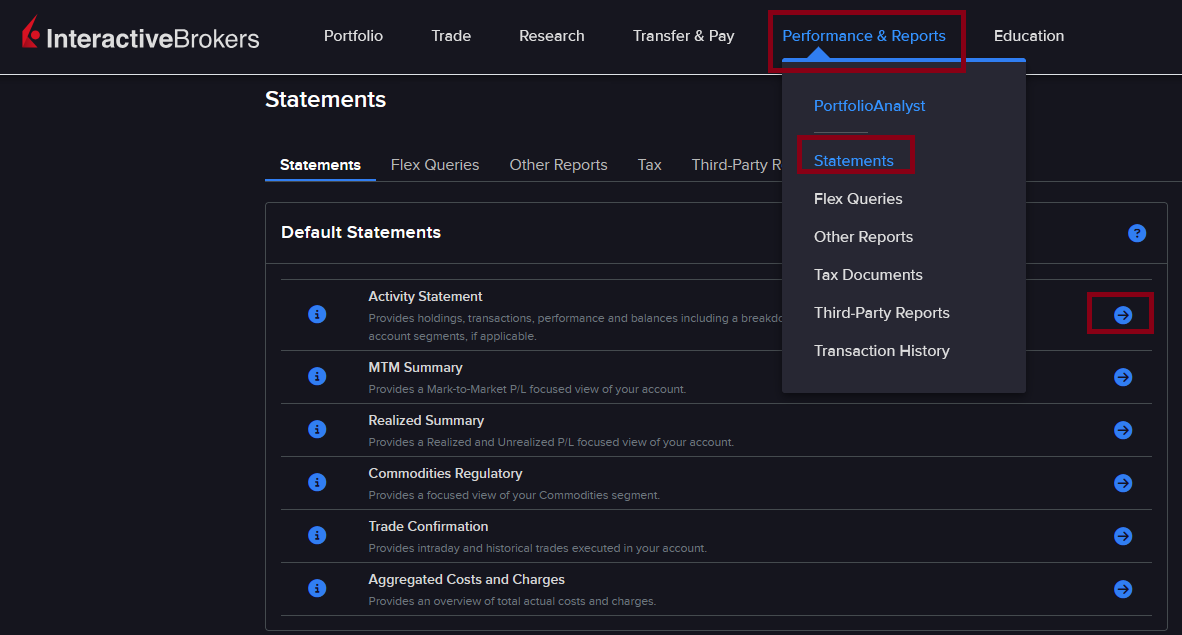
In IBKR, go to Performance & Reports and open Statements.
Step 2
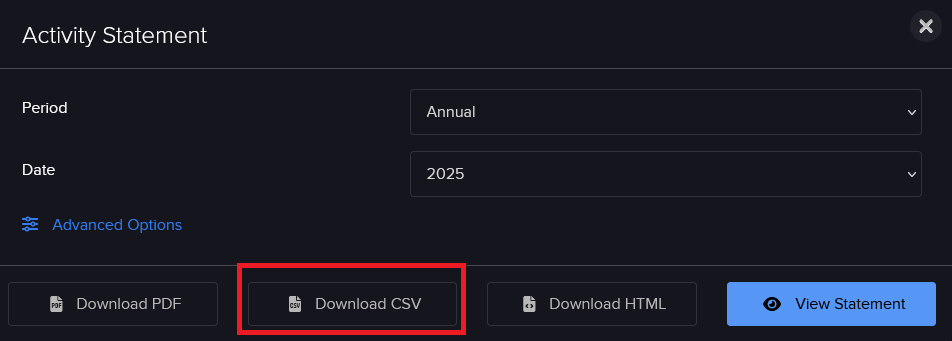
Generate an Activity Statement, set the correct date range, and download the result as CSV.
DeGiro Transactions Export
- Log in to DeGiro.
- Open Inbox, then Transactions.
- Select the start and end date for the trades you want to import.
- Click Export and download the file as CSV or XLS.
- Upload that file in Dividends Inside and choose DeGiro Transactions as the import format.
Where To Export
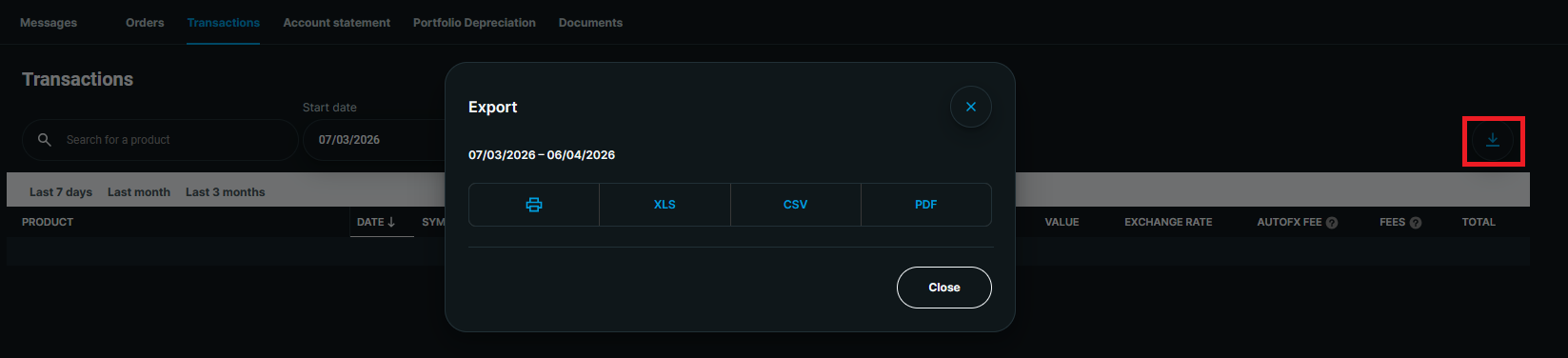
Use the Transactions export and keep the broker-generated layout unchanged before uploading it.
Need More Help?
If your file still does not preview correctly, double-check that the selected import format matches the file you uploaded. You can also use the report form if your broker export looks correct but is still rejected.